
Python Projects with Source Code for Final Year Students
Choosing the right Python project for your final year can be a game-changer in your academic performance and future career opportunities. Python, known for its simplicity and flexibility, is the preferred language for students, professionals, and organizations worldwide. This article brings you a curated list of Python projects with source code for final year students. These projects range from beginner to advanced levels and cover trending domains like AI, web development, data science, and automation.
Why Choose Python Projects for Your Final Year?
Python is widely used in both academia and industry due to its readability and vast community support. Here are some strong reasons to choose Python
High Demand -Python developers are in great demand in the job market.
Versatility: Python supports web development, data analysis, machine learning, and automation
Easy to Learn – Beginners can quickly pick up Python and build impressive projects, even for newcomers.
How to choose the Best Python Project with Source Code
Before finalizing a project idea, keep the following factors –
Interest and Passion– Choose a topic you are genuinely interested in.
Complexity – Match the project difficulty with your skill level.
Innovation – innovative ideas leave a strong impression.
Application – Real-world projects showcase your practical knowledge.
Source Code Availability – Opt for projects with open-source code for easier learning and customization.
Top Python Projects with Source Code for Final Year
Below are some of the best Python projects with source code for final year students, categorized by domain and complexity. Each project includes a brief description and a link to the source code repository.
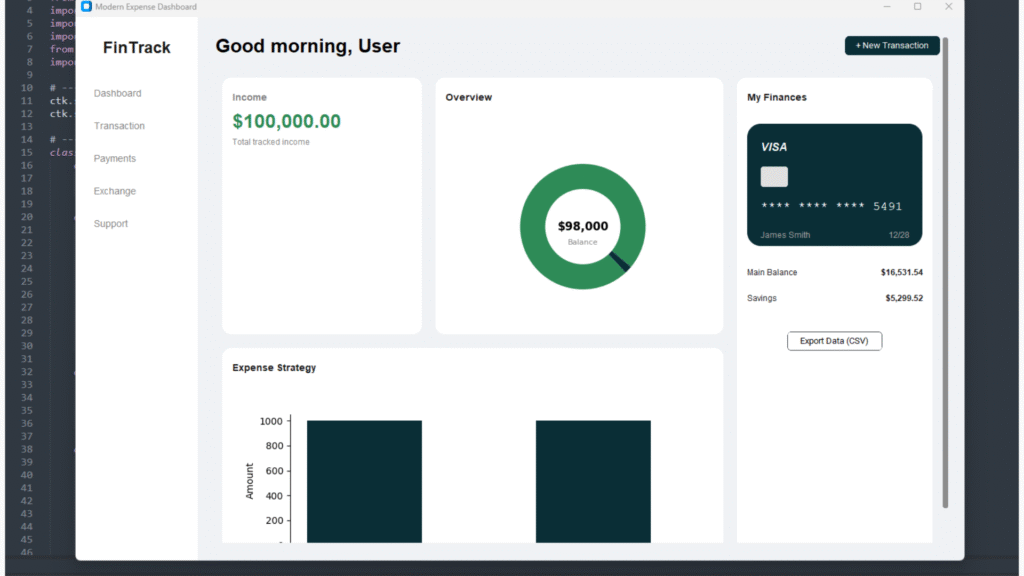
1. Expense Tracker
Description –
Build a personal finance tracker that categorizes expenses and generates dashboard reports.
Key Features –
- Expense categorization
- Monthly/yearly reports
- Data export options
import customtkinter as ctk
import tkinter as tk
from matplotlib.backends.backend_tkagg import FigureCanvasTkAgg
import matplotlib.pyplot as plt
import sqlite3
import pandas as pd
from datetime import datetime
import os

# --- Configuration ---
ctk.set_appearance_mode("Light")  # Matches the white background of your image
ctk.set_default_color_theme("green")

# --- Database Backend ---
class ExpenseTrackerDB:
    def __init__(self, db_name="expenses.db"):
        self.conn = sqlite3.connect(db_name)
        self.create_table()

    def create_table(self):
        with self.conn:
            self.conn.execute("""
                CREATE TABLE IF NOT EXISTS transactions (
                    id INTEGER PRIMARY KEY,
                    type TEXT,
                    category TEXT,
                    amount REAL,
                    date TEXT
                )
            """)

    def add_transaction(self, t_type, category, amount):
        date = datetime.now().strftime("%Y-%m-%d")
        with self.conn:
            self.conn.execute("INSERT INTO transactions (type, category, amount, date) VALUES (?, ?, ?, ?)",
                              (t_type, category, amount, date))

    def get_summary(self):
        # Returns total income, total expense, and data for charts
        df = pd.read_sql_query("SELECT * FROM transactions", self.conn)
        if df.empty:
            return 0, 0, df

        income = df[df['type'] == 'Income']['amount'].sum()
        expense = df[df['type'] == 'Expense']['amount'].sum()
        return income, expense, df

    def export_data(self):
        df = pd.read_sql_query("SELECT * FROM transactions", self.conn)
        df.to_csv("expense_report.csv", index=False)
        return "Exported to expense_report.csv"

# --- UI Components ---

class StatCard(ctk.CTkFrame):
    """A generic card for displaying stats like Income or Expense"""
    def __init__(self, parent, title, value, subtext, color_theme="default"):
        super().__init__(parent, fg_color="white", corner_radius=15)
        self.grid_columnconfigure(0, weight=1)

        # Title
        ctk.CTkLabel(self, text=title, font=("Arial", 14, "bold"), text_color="gray").grid(row=0, column=0, sticky="w", padx=15, pady=(15, 5))

        # Value
        text_col = "#2E8B57" if color_theme == "green" else "black"
        ctk.CTkLabel(self, text=value, font=("Arial", 28, "bold"), text_color=text_col).grid(row=1, column=0, sticky="w", padx=15, pady=0)

        # Subtext (e.g. +8.25%)
        ctk.CTkLabel(self, text=subtext, font=("Arial", 12), text_color="gray").grid(row=2, column=0, sticky="w", padx=15, pady=(0, 15))

class CreditCardWidget(ctk.CTkFrame):
    """Visually replicates the credit card in the image"""
    def __init__(self, parent):
        super().__init__(parent, fg_color="#0a2e36", corner_radius=20, height=180) # Dark green/blue bg
        self.pack_propagate(False)

        # Visa Logo Placeholder
        ctk.CTkLabel(self, text="VISA", font=("Arial", 16, "bold", "italic"), text_color="white").pack(anchor="w", padx=20, pady=(20, 10))

        # Chip (Visual only)
        chip = ctk.CTkFrame(self, width=40, height=30, fg_color="#e0e0e0", corner_radius=5)
        chip.pack(anchor="w", padx=20, pady=5)

        # Number
        ctk.CTkLabel(self, text="**** **** **** 5491", font=("Courier", 18), text_color="white").pack(anchor="w", padx=20, pady=10)

        # Name and Expiry
        bottom_frame = ctk.CTkFrame(self, fg_color="transparent")
        bottom_frame.pack(fill="x", padx=20, pady=10)

        ctk.CTkLabel(bottom_frame, text="James Smith", font=("Arial", 12), text_color="#a0a0a0").pack(side="left")
        ctk.CTkLabel(bottom_frame, text="12/28", font=("Arial", 12), text_color="#a0a0a0").pack(side="right")

class App(ctk.CTk):
    def __init__(self):
        super().__init__()

        self.db = ExpenseTrackerDB()
        self.title("Modern Expense Dashboard")
        self.geometry("1200x800")
        self.configure(fg_color="#F0F2F5") # Light gray background like dashboard apps

        # Layout Configuration
        self.grid_columnconfigure(1, weight=1)
        self.grid_rowconfigure(1, weight=1)

        # --- Sidebar ---
        self.sidebar = ctk.CTkFrame(self, width=200, corner_radius=0, fg_color="white")
        self.sidebar.grid(row=0, column=0, rowspan=2, sticky="nsew")
        self.logo_label = ctk.CTkLabel(self.sidebar, text="FinTrack", font=("Arial", 24, "bold"))
        self.logo_label.pack(pady=30)

        menu_items = ["Dashboard", "Transaction", "Payments", "Exchange", "Support"]
        for item in menu_items:
            btn = ctk.CTkButton(self.sidebar, text=item, fg_color="transparent", text_color="gray", hover_color="#f0f0f0", anchor="w", font=("Arial", 14))
            btn.pack(fill="x", padx=20, pady=10)

        # --- Main Content Area ---
        self.main_frame = ctk.CTkScrollableFrame(self, fg_color="transparent")
        self.main_frame.grid(row=0, column=1, rowspan=2, sticky="nsew", padx=20, pady=20)

        # Header
        self.header_frame = ctk.CTkFrame(self.main_frame, fg_color="transparent")
        self.header_frame.pack(fill="x", pady=(0, 20))

        self.welcome_label = ctk.CTkLabel(self.header_frame, text="Good morning, User", font=("Arial", 28, "bold"), text_color="black")
        self.welcome_label.pack(side="left")

        self.add_btn = ctk.CTkButton(self.header_frame, text="+ New Transaction", fg_color="#0a2e36", command=self.open_add_dialog)
        self.add_btn.pack(side="right")

        # --- Dashboard Grid ---
        # We use a grid system for the cards
        self.dashboard_grid = ctk.CTkFrame(self.main_frame, fg_color="transparent")
        self.dashboard_grid.pack(fill="both", expand=True)
        self.dashboard_grid.grid_columnconfigure((0, 1, 2), weight=1)

        # 1. Income Card (Top Left)
        self.income_card = StatCard(self.dashboard_grid, "Income", "$0.00", "+0% from last month")
        self.income_card.grid(row=0, column=0, padx=10, pady=10, sticky="nsew")

        # 2. Overview / Donut Chart (Center)
        self.overview_card = ctk.CTkFrame(self.dashboard_grid, fg_color="white", corner_radius=15)
        self.overview_card.grid(row=0, column=1, padx=10, pady=10, sticky="nsew")
        ctk.CTkLabel(self.overview_card, text="Overview", font=("Arial", 14, "bold")).pack(anchor="w", padx=15, pady=15)
        self.overview_canvas_frame = ctk.CTkFrame(self.overview_card, fg_color="white")
        self.overview_canvas_frame.pack(fill="both", expand=True, padx=10, pady=10)

        # 3. My Finances / Credit Card (Right)
        self.finances_card = ctk.CTkFrame(self.dashboard_grid, fg_color="white", corner_radius=15)
        self.finances_card.grid(row=0, column=2, rowspan=2, padx=10, pady=10, sticky="nsew")

        ctk.CTkLabel(self.finances_card, text="My Finances", font=("Arial", 14, "bold")).pack(anchor="w", padx=15, pady=15)

        # Add Credit Card Widget
        self.cc_widget = CreditCardWidget(self.finances_card)
        self.cc_widget.pack(fill="x", padx=15, pady=10)

        # Balance List (Dummy Data)
        self.balance_list = ctk.CTkFrame(self.finances_card, fg_color="transparent")
        self.balance_list.pack(fill="x", padx=15, pady=10)
        self.add_balance_row("Main Balance", "$16,531.54")
        self.add_balance_row("Savings", "$5,299.52")

        # Export Button
        self.export_btn = ctk.CTkButton(self.finances_card, text="Export Data (CSV)", fg_color="transparent", border_width=1, text_color="black", command=self.export_data)
        self.export_btn.pack(pady=20)

        # 4. Expense Strategy / Bar Chart (Bottom Left)
        self.expense_card = ctk.CTkFrame(self.dashboard_grid, fg_color="white", corner_radius=15)
        self.expense_card.grid(row=1, column=0, columnspan=2, padx=10, pady=10, sticky="nsew")
        ctk.CTkLabel(self.expense_card, text="Expense Strategy", font=("Arial", 14, "bold")).pack(anchor="w", padx=15, pady=15)
        self.expense_canvas_frame = ctk.CTkFrame(self.expense_card, fg_color="white")
        self.expense_canvas_frame.pack(fill="both", expand=True, padx=10, pady=10)

        # Initial Data Load
        self.refresh_data()

    def add_balance_row(self, label, amount):
        row = ctk.CTkFrame(self.balance_list, fg_color="transparent")
        row.pack(fill="x", pady=5)
        ctk.CTkLabel(row, text=label, font=("Arial", 12)).pack(side="left")
        ctk.CTkLabel(row, text=amount, font=("Arial", 12, "bold")).pack(side="right")

    def draw_donut_chart(self, income, expense):
        # Clear previous
        for widget in self.overview_canvas_frame.winfo_children():
            widget.destroy()

        fig, ax = plt.subplots(figsize=(3, 3), subplot_kw=dict(aspect="equal"))
        fig.patch.set_facecolor('white')

        data = [income, expense]
        labels = ['Income', 'Expense']
        colors = ['#2E8B57', '#0a2e36'] # Green and Dark Blue

        if sum(data) == 0:
            data = [1]
            labels = ["No Data"]
            colors = ["#e0e0e0"]

        wedges, texts = ax.pie(data, wedgeprops=dict(width=0.4), startangle=-40, colors=colors)

        # Center Text
        total = income - expense
        ax.text(0, 0, f"${total:,.0f}", ha='center', va='center', fontsize=12, fontweight='bold')
        ax.text(0, -0.25, "Balance", ha='center', va='center', fontsize=8, color='gray')

        canvas = FigureCanvasTkAgg(fig, master=self.overview_canvas_frame)
        canvas.draw()
        canvas.get_tk_widget().pack(fill="both", expand=True)
        plt.close(fig)

    def draw_bar_chart(self, df):
        for widget in self.expense_canvas_frame.winfo_children():
            widget.destroy()

        fig, ax = plt.subplots(figsize=(6, 2.5))
        fig.patch.set_facecolor('white')

        if not df.empty:
            # Group by category
            expenses = df[df['type'] == 'Expense']
            if not expenses.empty:
                cat_sum = expenses.groupby('category')['amount'].sum()
                categories = cat_sum.index.tolist()
                values = cat_sum.values.tolist()

                ax.bar(categories, values, color="#0a2e36", width=0.5)
                ax.spines['top'].set_visible(False)
                ax.spines['right'].set_visible(False)
                ax.set_ylabel("Amount")
            else:
                ax.text(0.5, 0.5, "No Expenses Yet", ha='center')
        else:
             ax.text(0.5, 0.5, "No Data", ha='center')

        canvas = FigureCanvasTkAgg(fig, master=self.expense_canvas_frame)
        canvas.draw()
        canvas.get_tk_widget().pack(fill="both", expand=True)
        plt.close(fig)

    def open_add_dialog(self):
        dialog = ctk.CTkToplevel(self)
        dialog.title("Add Transaction")
        dialog.geometry("300x350")
        dialog.transient(self) # Make it modal

        ctk.CTkLabel(dialog, text="Add New", font=("Arial", 18, "bold")).pack(pady=10)

        # Type
        type_var = ctk.StringVar(value="Expense")
        ctk.CTkSegmentedButton(dialog, values=["Income", "Expense"], variable=type_var).pack(pady=10)

        # Category
        cat_entry = ctk.CTkEntry(dialog, placeholder_text="Category (e.g. Food)")
        cat_entry.pack(pady=10)

        # Amount
        amount_entry = ctk.CTkEntry(dialog, placeholder_text="Amount")
        amount_entry.pack(pady=10)

        def save():
            try:
                amt = float(amount_entry.get())
                cat = cat_entry.get()
                t_type = type_var.get()
                if cat:
                    self.db.add_transaction(t_type, cat, amt)
                    self.refresh_data()
                    dialog.destroy()
            except ValueError:
                pass # Simple error handling

        ctk.CTkButton(dialog, text="Save Transaction", fg_color="#0a2e36", command=save).pack(pady=20)

    def refresh_data(self):
        inc, exp, df = self.db.get_summary()

        # Update Income Card
        # (Destroy old children of the card to refresh or use StringVar, keeping it simple here by recreating text)
        for widget in self.income_card.winfo_children():
            widget.destroy()

        ctk.CTkLabel(self.income_card, text="Income", font=("Arial", 14, "bold"), text_color="gray").grid(row=0, column=0, sticky="w", padx=15, pady=(15, 5))
        ctk.CTkLabel(self.income_card, text=f"${inc:,.2f}", font=("Arial", 28, "bold"), text_color="#2E8B57").grid(row=1, column=0, sticky="w", padx=15, pady=0)
        ctk.CTkLabel(self.income_card, text="Total tracked income", font=("Arial", 12), text_color="gray").grid(row=2, column=0, sticky="w", padx=15, pady=(0, 15))

        # Update Charts
        self.draw_donut_chart(inc, exp)
        self.draw_bar_chart(df)

    def export_data(self):
        msg = self.db.export_data()
        tk.messagebox.showinfo("Export", msg)

if __name__ == "__main__":
    app = App()
    app.mainloop()
Save this code as main.py and run it I am assuming that you have basic knowledge of python and know how to install required packages
2. Real-Time Chat Application
Description –
Create a real-time chat app using Python, Flask, and Socket.io. Learn about web sockets, threading, and self-paced communication.
Key Features –
- User login system
- Public and private chat rooms
- Message encryption
- Mobile-friendly UI
Source Code –
[GitHub – Chat Application]
3. E-Commerce Website
Description –
Build a fully functional e-commerce site with product listings, a shopping cart, and payment gateway integration using Django.
Key Features –
- Product listings
- User login
- Payment gateway
- Order history tracking
Source Code –
[GitHub – Django E-Commerce]
4. Movie Recommendation System
Description –
Plan a machine learning-based movie recommender using Python, Pandas, and Scikit-learn.
Key Features –
- Personalized movie suggestions
- Collaborative filtering
- Data visualization
Source Code –
[GeeksforGeeks]
5. Hospital Management System
Description –
Create a system to manage hospital operations, including appointments, billing, and patient records.
Key Features –
- Patient and doctor registration
- Appointment scheduling
- Invoice generation
Source Code –
[GitHub – Hospital Management System]
6. Weather Forecast App
Description –
Build a desktop or web app to show real-time weather updates using external APIs such as OpenWeatherMap.
Key Features –
- City-wise weather search
- Temperature, wind, and humidity display
- API integration
Prerequisites
Before writing code, you need two things:
- OpenWeatherMap API Key:
- Go to OpenWeatherMap.org.
- Sign up for a free account.
- Navigate to “My API Keys” and copy your key. (It may take 10-15 minutes to activate after signing up.
Source Code –
import tkinter as tk
from tkinter import messagebox
import requests

def get_weather():
    city = city_entry.get()

    if not city:
        messagebox.showwarning("Input Error", "Please enter a city name!")
        return

    # OpenWeatherMap API setup
    api_key = "YOUR_API_KEY_HERE"  # <--- PASTE YOUR KEY HERE
    base_url = "http://api.openweathermap.org/data/2.5/weather"

    # Parameters for the API call (units='metric' gives Celsius)
    params = {
        'q': city,
        'appid': api_key,
        'units': 'metric'
    }

    try:
        response = requests.get(base_url, params=params)
        data = response.json()

        if response.status_code == 200:
            # Parse the JSON data
            city_name = data['name']
            country = data['sys']['country']
            temp = data['main']['temp']
            humidity = data['main']['humidity']
            wind_speed = data['wind']['speed']
            description = data['weather'][0]['description']

            # Update the UI labels
            result_label.config(text=f"{city_name}, {country}")
            temp_label.config(text=f"{temp}°C")
            details_label.config(text=f"Condition: {description.title()}\n"
                                      f"Humidity: {humidity}%\n"
                                      f"Wind: {wind_speed} m/s")
        else:
            messagebox.showerror("Error", f"City not found.\n({data.get('message', '')})")

    except requests.exceptions.RequestException as e:
        messagebox.showerror("Connection Error", f"Could not connect to internet.\n{e}")

# --- GUI Setup ---
root = tk.Tk()
root.title("Weather Forecast App")
root.geometry("350x400")
root.configure(bg="#f0f0f0")

# Header
header_label = tk.Label(root, text="Weather App", font=("Helvetica", 20, "bold"), bg="#f0f0f0")
header_label.pack(pady=20)

# Input Field
city_entry = tk.Entry(root, font=("Helvetica", 14), width=20, justify='center')
city_entry.pack(pady=10)

# Search Button
search_button = tk.Button(root, text="Check Weather", font=("Helvetica", 12),
                          bg="#007bff", fg="white", command=get_weather)
search_button.pack(pady=10)

# --- Results Area ---
result_label = tk.Label(root, text="", font=("Helvetica", 18, "bold"), bg="#f0f0f0")
result_label.pack(pady=10)

temp_label = tk.Label(root, text="", font=("Helvetica", 30, "bold"), fg="#ff5722", bg="#f0f0f0")
temp_label.pack()

details_label = tk.Label(root, text="", font=("Helvetica", 12), bg="#f0f0f0")
details_label.pack(pady=20)

# Run the app
root.mainloop()
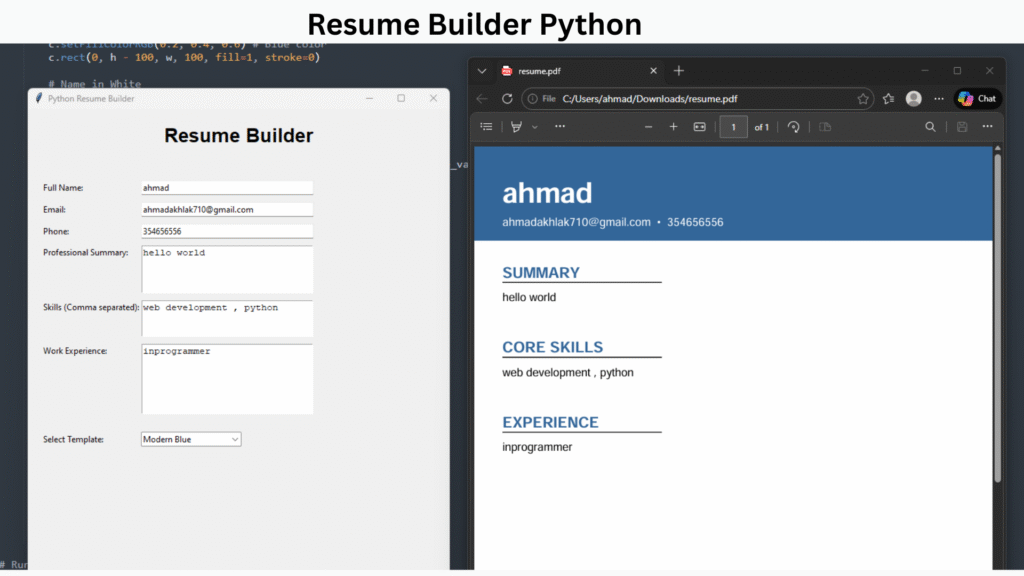
7. Resume Builder
Description –
Create a tool that helps users generate professional resumes by inputting their details, using Python and Tkinter.
Key Features –
- Interactive form-based input
- PDF export
- Pre-built templates
Source Code–
import tkinter as tk
from tkinter import ttk, messagebox, filedialog
from reportlab.pdfgen import canvas
from reportlab.lib.pagesizes import letter
from reportlab.lib import colors

class ResumeBuilderApp:
    def __init__(self, root):
        self.root = root
        self.root.title("Python Resume Builder")
        self.root.geometry("600x750")

        # --- Variables to store user input ---
        self.name_var = tk.StringVar()
        self.email_var = tk.StringVar()
        self.phone_var = tk.StringVar()
        self.template_var = tk.StringVar(value="Classic") # Default template

        # --- GUI Layout ---
        self.create_widgets()

    def create_widgets(self):
        # Title
        title_label = ttk.Label(self.root, text="Resume Builder", font=("Helvetica", 20, "bold"))
        title_label.pack(pady=20)

        # Container for inputs
        input_frame = ttk.Frame(self.root, padding="20")
        input_frame.pack(fill=tk.BOTH, expand=True)

        # Personal Info
        ttk.Label(input_frame, text="Full Name:").grid(row=0, column=0, sticky=tk.W, pady=5)
        ttk.Entry(input_frame, textvariable=self.name_var, width=40).grid(row=0, column=1, pady=5)

        ttk.Label(input_frame, text="Email:").grid(row=1, column=0, sticky=tk.W, pady=5)
        ttk.Entry(input_frame, textvariable=self.email_var, width=40).grid(row=1, column=1, pady=5)

        ttk.Label(input_frame, text="Phone:").grid(row=2, column=0, sticky=tk.W, pady=5)
        ttk.Entry(input_frame, textvariable=self.phone_var, width=40).grid(row=2, column=1, pady=5)

        # Professional Summary (Text Area)
        ttk.Label(input_frame, text="Professional Summary:").grid(row=3, column=0, sticky=tk.NW, pady=5)
        self.summary_text = tk.Text(input_frame, height=4, width=30)
        self.summary_text.grid(row=3, column=1, pady=5)

        # Skills (Text Area)
        ttk.Label(input_frame, text="Skills (Comma separated):").grid(row=4, column=0, sticky=tk.NW, pady=5)
        self.skills_text = tk.Text(input_frame, height=3, width=30)
        self.skills_text.grid(row=4, column=1, pady=5)

        # Experience (Text Area)
        ttk.Label(input_frame, text="Work Experience:").grid(row=5, column=0, sticky=tk.NW, pady=5)
        self.experience_text = tk.Text(input_frame, height=6, width=30)
        self.experience_text.grid(row=5, column=1, pady=5)

        # Template Selection
        ttk.Label(input_frame, text="Select Template:").grid(row=6, column=0, sticky=tk.W, pady=20)
        template_combo = ttk.Combobox(input_frame, textvariable=self.template_var, values=["Classic", "Modern Blue"])
        template_combo.grid(row=6, column=1, sticky=tk.W, pady=20)

        # Generate Button
        generate_btn = ttk.Button(self.root, text="Generate Resume PDF", command=self.generate_pdf)
        generate_btn.pack(pady=10)

    def generate_pdf(self):
        # Get data from Text widgets
        summary = self.summary_text.get("1.0", tk.END).strip()
        skills = self.skills_text.get("1.0", tk.END).strip()
        experience = self.experience_text.get("1.0", tk.END).strip()

        name = self.name_var.get()

        if not name:
            messagebox.showerror("Error", "Name is required!")
            return

        # Ask where to save
        file_path = filedialog.asksaveasfilename(defaultextension=".pdf", filetypes=[("PDF files", "*.pdf")])

        if not file_path:
            return

        # Initialize PDF Canvas
        c = canvas.Canvas(file_path, pagesize=letter)
        width, height = letter

        # --- Template Logic ---
        selected_template = self.template_var.get()

        if selected_template == "Modern Blue":
            self.draw_modern_template(c, width, height, name, summary, skills, experience)
        else:
            self.draw_classic_template(c, width, height, name, summary, skills, experience)

        c.save()
        messagebox.showinfo("Success", "Resume generated successfully!")

    # --- TEMPLATE 1: CLASSIC (Clean, Black & White) ---
    def draw_classic_template(self, c, w, h, name, summary, skills, experience):
        # Header
        c.setFont("Helvetica-Bold", 24)
        c.drawCentredString(w/2, h - 50, name)

        c.setFont("Helvetica", 10)
        contact_info = f"{self.email_var.get()} | {self.phone_var.get()}"
        c.drawCentredString(w/2, h - 70, contact_info)

        c.line(50, h - 80, w - 50, h - 80)

        # Content Position Cursor
        y_position = h - 120

        # Helper to draw sections
        def draw_section(title, content):
            nonlocal y_position
            c.setFont("Helvetica-Bold", 14)
            c.drawString(50, y_position, title)
            y_position -= 20

            c.setFont("Helvetica", 12)
            text_object = c.beginText(50, y_position)
            for line in content.split('\n'):
                text_object.textLine(line)
            c.drawText(text_object)

            # Calculate rough height of text to move cursor down
            num_lines = len(content.split('\n'))
            y_position -= (num_lines * 15 + 30)

        draw_section("Professional Summary", summary)
        draw_section("Skills", skills)
        draw_section("Work Experience", experience)

    # --- TEMPLATE 2: MODERN BLUE (Sidebar style) ---
    def draw_modern_template(self, c, w, h, name, summary, skills, experience):
        # Blue Header Box
        c.setFillColorRGB(0.2, 0.4, 0.6) # Blue color
        c.rect(0, h - 100, w, 100, fill=1, stroke=0)

        # Name in White
        c.setFillColor(colors.white)
        c.setFont("Helvetica-Bold", 30)
        c.drawString(30, h - 60, name)

        c.setFont("Helvetica", 12)
        c.drawString(30, h - 85, f"{self.email_var.get()}  •  {self.phone_var.get()}")

        # Reset color to black for body
        c.setFillColor(colors.black)

        y_position = h - 140

        def draw_modern_section(title, content):
            nonlocal y_position
            c.setFillColorRGB(0.2, 0.4, 0.6) # Section headers in blue
            c.setFont("Helvetica-Bold", 16)
            c.drawString(30, y_position, title.upper())
            c.line(30, y_position - 5, 200, y_position - 5)
            y_position -= 25

            c.setFillColor(colors.black)
            c.setFont("Helvetica", 12)

            text_object = c.beginText(30, y_position)
            for line in content.split('\n'):
                text_object.textLine(line)
            c.drawText(text_object)

            num_lines = len(content.split('\n'))
            y_position -= (num_lines * 15 + 40)

        draw_modern_section("Summary", summary)
        draw_modern_section("Core Skills", skills)
        draw_modern_section("Experience", experience)

# Run the App
if __name__ == "__main__":
    root = tk.Tk()
    app = ResumeBuilderApp(root)
    root.mainloop()
8. Smart Home Automation System
Description –
Control home appliances like lights, fans, and appliances using Raspberry Pi and Python scripts.
Key Features –
- Voice and sensor-based control
- Mobile/web interface
- IoT integration
Source Code –
[GitHub – Home Automation]
9. Credit Card Fraud Detection
Description –
Install a machine learning model to detect fraudulent credit card transactions.
Key Features –
- Data analysis
- Froud prediction
- Performance metrics visualization
Source Code –
[GitHub – Fraud Detection]10. Library Management System

Description –
Design a system to manage library operations such as book issuing and returning books, and member registrations.
Key Features –
- Book inventory tracking
- Member and librarian accounts
- Fine calculation
Source Code –
import tkinter as tk
from tkinter import ttk, messagebox
import sqlite3
from datetime import datetime, timedelta

# --- Database Backend ---
class LibraryDB:
    def __init__(self, db_name="library.db"):
        self.conn = sqlite3.connect(db_name)
        self.create_tables()

    def create_tables(self):
        with self.conn:
            # Books Table
            self.conn.execute("""
                CREATE TABLE IF NOT EXISTS books (
                    id INTEGER PRIMARY KEY,
                    title TEXT NOT NULL,
                    author TEXT NOT NULL,
                    status TEXT DEFAULT 'Available'
                )
            """)
            # Members Table
            self.conn.execute("""
                CREATE TABLE IF NOT EXISTS members (
                    id INTEGER PRIMARY KEY,
                    name TEXT NOT NULL,
                    email TEXT UNIQUE
                )
            """)
            # Loans Table (Tracks borrowing)
            self.conn.execute("""
                CREATE TABLE IF NOT EXISTS loans (
                    id INTEGER PRIMARY KEY,
                    book_id INTEGER,
                    member_id INTEGER,
                    issue_date TEXT,
                    due_date TEXT,
                    return_date TEXT,
                    FOREIGN KEY(book_id) REFERENCES books(id),
                    FOREIGN KEY(member_id) REFERENCES members(id)
                )
            """)

    def add_book(self, title, author):
        with self.conn:
            self.conn.execute("INSERT INTO books (title, author) VALUES (?, ?)", (title, author))

    def add_member(self, name, email):
        try:
            with self.conn:
                self.conn.execute("INSERT INTO members (name, email) VALUES (?, ?)", (name, email))
            return True
        except sqlite3.IntegrityError:
            return False  # Email probably exists

    def issue_book(self, book_id, member_id):
        # Check if book is available
        cursor = self.conn.execute("SELECT status FROM books WHERE id = ?", (book_id,))
        result = cursor.fetchone()

        if not result:
            return "Book not found."
        if result[0] != 'Available':
            return "Book is already issued."

        # Issue book
        issue_date = datetime.now()
        due_date = issue_date + timedelta(days=14) # 14 day loan period

        with self.conn:
            self.conn.execute("INSERT INTO loans (book_id, member_id, issue_date, due_date) VALUES (?, ?, ?, ?)",
                              (book_id, member_id, issue_date.strftime("%Y-%m-%d"), due_date.strftime("%Y-%m-%d")))
            self.conn.execute("UPDATE books SET status = 'Issued' WHERE id = ?", (book_id,))
        return "Success"

    def return_book(self, book_id):
        # Find active loan for this book
        cursor = self.conn.execute("""
            SELECT id, due_date FROM loans
            WHERE book_id = ? AND return_date IS NULL
        """, (book_id,))
        loan = cursor.fetchone()

        if not loan:
            return "This book is not currently issued.", 0

        loan_id, due_date_str = loan
        return_date = datetime.now()
        due_date = datetime.strptime(due_date_str, "%Y-%m-%d")

        # Calculate Fine (e.g., $1 per day)
        fine = 0
        if return_date > due_date:
            overdue_days = (return_date - due_date).days
            fine = overdue_days * 1.0  # $1 per day

        with self.conn:
            self.conn.execute("UPDATE loans SET return_date = ? WHERE id = ?",
                              (return_date.strftime("%Y-%m-%d"), loan_id))
            self.conn.execute("UPDATE books SET status = 'Available' WHERE id = ?", (book_id,))

        return "Returned Successfully", fine

    def get_all_books(self):
        cursor = self.conn.execute("SELECT * FROM books")
        return cursor.fetchall()

    def get_all_members(self):
        cursor = self.conn.execute("SELECT * FROM members")
        return cursor.fetchall()

# --- GUI Frontend ---
class LibraryApp(tk.Tk):
    def __init__(self):
        super().__init__()
        self.db = LibraryDB()
        self.title("Library Management System")
        self.geometry("800x600")

        # Styling
        style = ttk.Style()
        style.theme_use('clam')
        style.configure("TLabel", font=("Helvetica", 11))
        style.configure("TButton", font=("Helvetica", 10))

        # Main Tab Control
        self.notebook = ttk.Notebook(self)
        self.notebook.pack(fill='both', expand=True, padx=10, pady=10)

        # Tabs
        self.create_dashboard_tab()
        self.create_books_tab()
        self.create_members_tab()

        # Status Bar
        self.status_var = tk.StringVar()
        self.status_var.set("Welcome to Library System")
        tk.Label(self, textvariable=self.status_var, bd=1, relief=tk.SUNKEN, anchor=tk.W).pack(side=tk.BOTTOM, fill=tk.X)

    def create_dashboard_tab(self):
        tab = ttk.Frame(self.notebook)
        self.notebook.add(tab, text="Circulation (Issue/Return)")

        # --- Issue Section ---
        frame_issue = ttk.LabelFrame(tab, text="Issue Book")
        frame_issue.pack(fill="x", padx=20, pady=20)

        ttk.Label(frame_issue, text="Book ID:").grid(row=0, column=0, padx=10, pady=10)
        self.issue_book_id = ttk.Entry(frame_issue)
        self.issue_book_id.grid(row=0, column=1, padx=10, pady=10)

        ttk.Label(frame_issue, text="Member ID:").grid(row=0, column=2, padx=10, pady=10)
        self.issue_member_id = ttk.Entry(frame_issue)
        self.issue_member_id.grid(row=0, column=3, padx=10, pady=10)

        ttk.Button(frame_issue, text="Issue Book", command=self.issue_book_action).grid(row=0, column=4, padx=20, pady=10)

        # --- Return Section ---
        frame_return = ttk.LabelFrame(tab, text="Return Book")
        frame_return.pack(fill="x", padx=20, pady=20)

        ttk.Label(frame_return, text="Book ID:").grid(row=0, column=0, padx=10, pady=10)
        self.return_book_id = ttk.Entry(frame_return)
        self.return_book_id.grid(row=0, column=1, padx=10, pady=10)

        ttk.Button(frame_return, text="Return Book", command=self.return_book_action).grid(row=0, column=2, padx=20, pady=10)

    def create_books_tab(self):
        tab = ttk.Frame(self.notebook)
        self.notebook.add(tab, text="Book Inventory")

        # Add Book
        frame_add = ttk.Frame(tab)
        frame_add.pack(fill="x", padx=10, pady=10)

        ttk.Label(frame_add, text="Title:").pack(side="left", padx=5)
        self.book_title = ttk.Entry(frame_add, width=30)
        self.book_title.pack(side="left", padx=5)

        ttk.Label(frame_add, text="Author:").pack(side="left", padx=5)
        self.book_author = ttk.Entry(frame_add, width=20)
        self.book_author.pack(side="left", padx=5)

        ttk.Button(frame_add, text="Add Book", command=self.add_book_action).pack(side="left", padx=10)
        ttk.Button(frame_add, text="Refresh List", command=self.refresh_books).pack(side="right", padx=10)

        # Treeview for Books
        columns = ("ID", "Title", "Author", "Status")
        self.book_tree = ttk.Treeview(tab, columns=columns, show="headings")
        self.book_tree.pack(fill="both", expand=True, padx=10, pady=10)

        for col in columns:
            self.book_tree.heading(col, text=col)
            self.book_tree.column(col, width=100 if col == "ID" else 200)

        self.refresh_books()

    def create_members_tab(self):
        tab = ttk.Frame(self.notebook)
        self.notebook.add(tab, text="Members")

        # Add Member
        frame_add = ttk.Frame(tab)
        frame_add.pack(fill="x", padx=10, pady=10)

        ttk.Label(frame_add, text="Name:").pack(side="left", padx=5)
        self.mem_name = ttk.Entry(frame_add, width=20)
        self.mem_name.pack(side="left", padx=5)

        ttk.Label(frame_add, text="Email:").pack(side="left", padx=5)
        self.mem_email = ttk.Entry(frame_add, width=20)
        self.mem_email.pack(side="left", padx=5)

        ttk.Button(frame_add, text="Register Member", command=self.add_member_action).pack(side="left", padx=10)
        ttk.Button(frame_add, text="Refresh List", command=self.refresh_members).pack(side="right", padx=10)

        # Treeview for Members
        columns = ("ID", "Name", "Email")
        self.mem_tree = ttk.Treeview(tab, columns=columns, show="headings")
        self.mem_tree.pack(fill="both", expand=True, padx=10, pady=10)

        for col in columns:
            self.mem_tree.heading(col, text=col)

        self.refresh_members()

    # --- Actions ---

    def add_book_action(self):
        title = self.book_title.get()
        author = self.book_author.get()
        if title and author:
            self.db.add_book(title, author)
            self.book_title.delete(0, tk.END)
            self.book_author.delete(0, tk.END)
            self.refresh_books()
            self.status_var.set("Book Added Successfully")
        else:
            messagebox.showerror("Error", "Please fill in all fields")

    def add_member_action(self):
        name = self.mem_name.get()
        email = self.mem_email.get()
        if name and email:
            success = self.db.add_member(name, email)
            if success:
                self.mem_name.delete(0, tk.END)
                self.mem_email.delete(0, tk.END)
                self.refresh_members()
                self.status_var.set("Member Added Successfully")
            else:
                messagebox.showerror("Error", "Email already exists")
        else:
            messagebox.showerror("Error", "Please fill in all fields")

    def issue_book_action(self):
        try:
            bid = int(self.issue_book_id.get())
            mid = int(self.issue_member_id.get())
            result = self.db.issue_book(bid, mid)
            if result == "Success":
                messagebox.showinfo("Success", "Book Issued Successfully")
                self.refresh_books()
                self.issue_book_id.delete(0, tk.END)
                self.issue_member_id.delete(0, tk.END)
            else:
                messagebox.showerror("Error", result)
        except ValueError:
            messagebox.showerror("Error", "Please enter valid Numeric IDs")

    def return_book_action(self):
        try:
            bid = int(self.return_book_id.get())
            msg, fine = self.db.return_book(bid)
            if "Returned" in msg:
                fine_msg = f"\nFine Due: ${fine:.2f}" if fine > 0 else "\nNo Fine."
                messagebox.showinfo("Success", msg + fine_msg)
                self.refresh_books()
                self.return_book_id.delete(0, tk.END)
            else:
                messagebox.showerror("Error", msg)
        except ValueError:
             messagebox.showerror("Error", "Please enter a valid Numeric Book ID")

    def refresh_books(self):
        for row in self.book_tree.get_children():
            self.book_tree.delete(row)
        for book in self.db.get_all_books():
            self.book_tree.insert("", tk.END, values=book)

    def refresh_members(self):
        for row in self.mem_tree.get_children():
            self.mem_tree.delete(row)
        for mem in self.db.get_all_members():
            self.mem_tree.insert("", tk.END, values=mem)

if __name__ == "__main__":
    app = LibraryApp()
    app.mainloop()
11. News Aggregator
Description –
Collect and display news from multiple sources and present it in a user-friendly interface.
Key Features –
- API-based news fetching
- Category-wise filtering
- User preferences
Source Code –
[data flair]
12. Handwritten Digit Recognition
Description –
Build a deep learning model using TensorFlow or Keras to recognize handwritten digits (MNIST dataset).
Key Features –
- Image preprocessing
- Neural network training
- Prediction accuracy
Source Code – [Geeksforgeek]
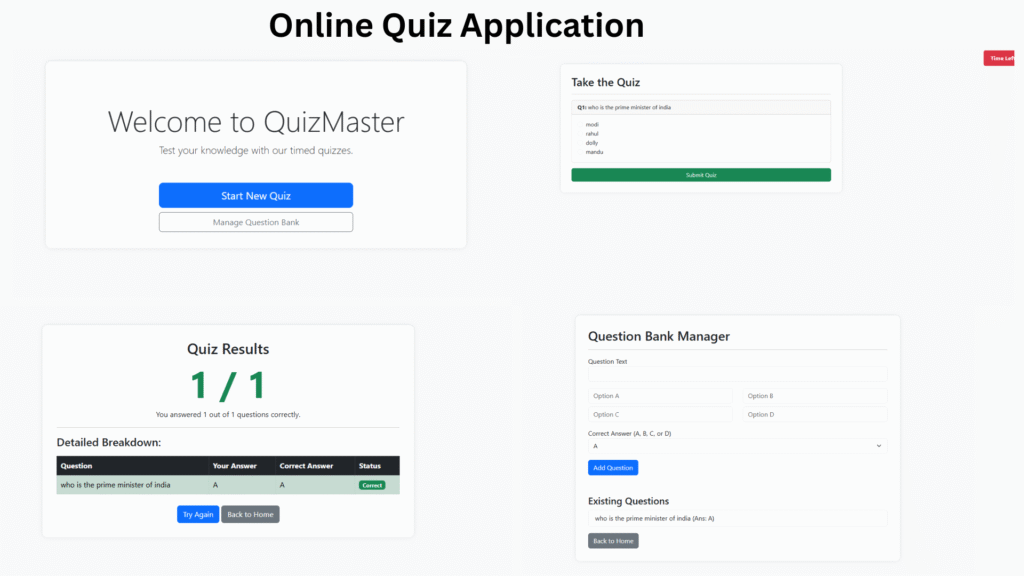
13. Online Quiz Application
Description –
Create an interactive quiz platform for students and educators.
Key Features –
- Timed quizzes
- Question bank management
- Real-time scoring
Source Code –
Tips for Final Year Students Working on Python Projects
- Start Early – Begin your project well before the deadline to have enough time for research and troubleshooting.
- Understand the logic – Don’t just copy-paste; understand how the source code works and try making improvements.
- Documentation – Write clear documentation for your project. It’s essential for evaluation and future reference.
- Presentation – Prepare a demo video or slides to showcase your project effectively.
- Version Control – Use GitHub or GitLab for source code management and collaboration.
Conclusion
Choosing the right Python project with source code for your final year is crucial for academic success and career growth. The projects listed above are not only innovative and practical but also come with open-source code to help you get started quickly. Whether your interest lies in web development, AI, data science, or automation, there’s a Python project here for you.
Start coding today, keep learning, and let your Python project make a mark in your final year!
FAQs –
Q1: Where can I get the source code for these Python projects?
A: Most project titles above include a GitHub link where you can download the complete source code.
Q2: Can I customize these projects?
A: Yes, all open-source projects can be modified to suit your requirements and showcase your creativity.
Q3: Are these projects beginner-friendly?
A: Many projects are suitable for beginners. Start with simpler ones and gradually move to advanced levels.
Remember, your final year Python project is your portfolio’s highlight. Choose wisely, build passionately, and code responsibly!
Looking for more Python projects with source code for the final year? Bookmark this page for fresh ideas and updates!


Pingback: Python Async/Await: Common Mistakes That Kill Performance (2026) -